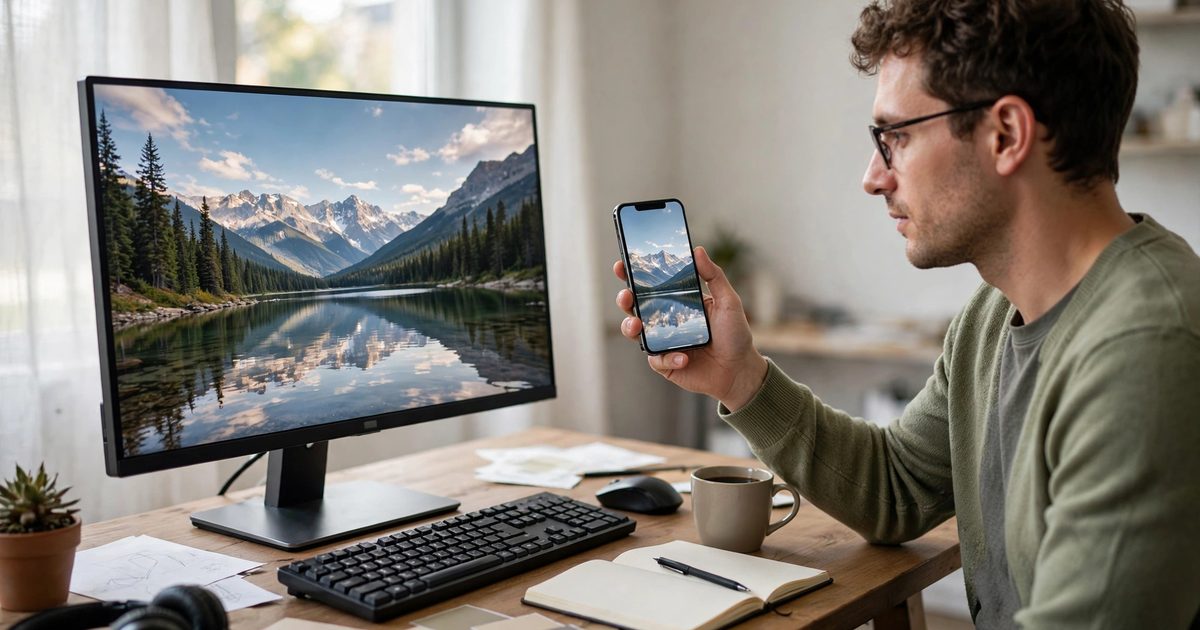
The right Squarespace banner dimensions are 2500 pixels wide, in a landscape shape, saved as a JPG under 500 KB. That is the whole answer for most sites: Squarespace itself recommends 1500 to 2500 pixels for images and creates its own smaller copies from the file you upload, so 2500 gives you every size it can serve. Height matters less than people think, because a banner on Squarespace 7.1 is really a section background that is cropped to whatever height the section is set to, on every screen size. Below are the exact dimensions by placement, why your banner crops the way it does, and how to stop it cutting off faces on mobile.
What are the Squarespace banner dimensions by placement?
| Placement | Recommended pixels | Ratio | Notes |
|---|---|---|---|
| Full-width section background (7.1 hero) | 2500 x 1406 | 16:9 | Cropped to section height; keep the subject in the middle third |
| Shorter section background | 2500 x 1250 | 2:1 | Works for Small and Medium section heights with less cropping |
| Tall or full-screen hero | 2500 x 1667 | 3:2 | Less cropping when the section is set to Large or full height |
| Blog post and list thumbnails | 1500 x 1000 | 3:2 | Squarespace crops to the ratio set in the blog layout; upload the same ratio |
| Gallery and image blocks | 1500 to 2500 wide | Any | Shown at the image’s own ratio unless the block crops it |
| 7.0 template banners | 2500 wide, 1500 to 2500 tall depending on template | Varies | Brine family banners are full-bleed; check the template’s own guide |
| Logo | PNG or SVG, uploaded at roughly twice its displayed size | Any | Squarespace has its own logo width guidance; the header scales it down |
Squarespace’s image formatting guide sets the limits behind that table: JPG, PNG, GIF or WebP; 20 MB file size limit; 500 KB or less recommended for speed; 2500 pixels wide ideal, and images under 1500 wide may look blurry on large screens.
Why does the banner crop differently on every screen?
Because a 7.1 banner is a background, not a fixed image. The section has a height setting (Small, Medium, Large, or a custom height on Fluid Engine) and the image is scaled to cover that box. A wide desktop shows a wide crop; a phone shows a tall crop of the middle of the image; a laptop somewhere in between. There is no dimension that avoids cropping on every device, so the job is to make the crop harmless:
- Set the focal point. Edit the section, Background, click the image, and drag the focal point circle onto the face or product. Squarespace keeps that point visible at every size.
- Keep the subject in the middle third of the image horizontally. Anything near the left or right edge is gone on mobile.
- Leave breathing room above and below; a tight head-and-shoulders crop loses the top of the head on wide screens.
- Check the mobile preview (phone icon) before saving, and adjust section height for mobile separately if the layout allows.
What file size and format should a banner be?
- JPG at 70 to 80 percent quality for photos; a 2500-wide JPG lands around 250 to 500 KB.
- WebP if your export tool makes it; 25 to 35 percent smaller at the same quality, and Squarespace serves it everywhere except Email Campaigns.
- PNG only for graphics with flat colour or transparency; a photo saved as PNG is five times the size for no visible gain.
- Never upload straight from the camera. A 6000-pixel, 8 MB file is scaled down anyway and slows the upload and the editor.
Squarespace makes seven copies of each upload (100, 300, 500, 750, 1000, 1500 and 2500 pixels wide) and serves the one that fits the visitor’s screen, so file size on your end mostly affects upload time; the quality setting still travels through to every copy. The wider guide to image sizes for a website covers export settings in detail.
How do you add or change a banner on Squarespace 7.1?
- Edit the page and hover over the top section, then click Edit Section.
- Open the Background tab and choose Image.
- Upload the file or pick one from the library, then set the focal point.
- Open the Format tab to set the section height and, on Fluid Engine, the content width and alignment.
- Add an overlay (Edit Section, Colors, Overlay opacity) if text sits on the photo; 20 to 40 percent dark keeps white text readable without killing the image.
- Save, then check desktop and mobile preview.
What about the banner on Squarespace 7.0?
On 7.0, banners belong to the template. Brine family templates use full-bleed banners with a height set in Site Styles; Bedford, Pacific and others have their own banner heights and ratios, and some templates have no banner at all. Upload 2500 wide, set the height in Site Styles, and use the focal point in the page settings, Media tab. Squarespace’s 7.0 banner guide lists the per-template behaviour.
Why is the banner blurry or pixelated?
| Cause | Fix |
|---|---|
| Uploaded under 1500 pixels wide | Re-export at 2500 wide from the original |
| Heavy compression (quality under 60) | Export at 70 to 80 |
| Screenshot or a web-sized image scaled up | Use the original photo, never a downloaded copy |
| Section height too tall for the image | A 2500 x 800 image stretched to a full-screen section is enlarged; use a 16:9 or 3:2 file |
| Browser zoom or a 4K display | Normal; 2500 is the maximum Squarespace serves |
Banner size is one of the first things I fix on a Squarespace website design audit, alongside the favicon, because the hero photo is the first thing every visitor judges and the largest file on the page. More small fixes like it are in the Squarespace design tips and tricks post.
Frequently asked questions
2500 pixels wide in a landscape shape, typically 2500 x 1406 (16:9) or 2500 x 1667 (3:2), saved as a JPG or WebP under 500 KB. Squarespace recommends 1500 to 2500 pixels wide and serves smaller copies automatically.
The same 2500-wide image with the focal point set on the subject and the subject kept in the middle third. Mobile shows a tall crop of the centre, so there is no separate mobile size, only a safe composition.
Banners on 7.1 are section backgrounds scaled to cover the section height, so every screen size shows a different crop. Set the focal point and keep the subject central; the crop then cuts empty space instead of the subject.
JPG at 70 to 80 percent quality for photos, WebP if available, PNG only for graphics with transparency. Keep the file under 500 KB; the hard limit is 20 MB.
Usually the upload was under 1500 pixels wide, over-compressed, or a small image stretched into a tall section. Re-export at 2500 wide from the original at quality 70 to 80.
Edit the page, click Edit Section on the top section, open the Background tab, upload the image, set the focal point, adjust the section height under Format, and save.