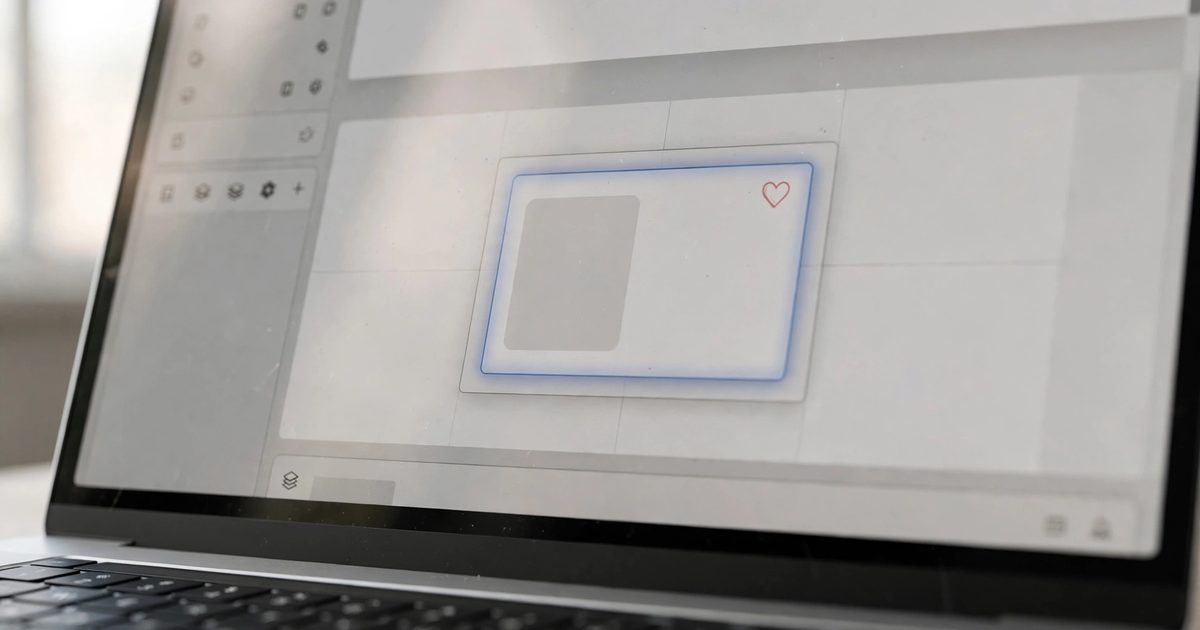
How to save a section in Squarespace: edit the page, hover over the section, and click the heart icon in its toolbar. The section is stored under Add Section, Saved, and you can drop a copy onto any page of the same site. That is the whole feature on 7.1, and it is the fastest way to keep a testimonial band, a call-to-action strip or a services grid consistent across a site. Two things trip people up: a saved section is a snapshot, so editing the original does not update the copies, and saved sections live on one site unless you are a Circle member, who can save to an account-level catalogue and reuse across client sites. The details, limits and the workflow that makes saved sections worth using are below.
How to save a section in Squarespace 7.1
- Open the Pages panel, click the page, and click Edit.
- Hover over the section you want to keep.
- Click the heart icon in the section’s toolbar. If you are a Circle member, choose This Site to save it to the site, or the account option to save it to your catalogue.
- Give it a name you will recognise in a list of fifty (“CTA band, orange”) and save.
Squarespace’s saved sections guide sets the limits: up to 250 saved sections per site, and updating the original section does not change the saved version or any copy already placed.
How do you reuse a saved section?
- Edit the page where you want it and click Add Section where it should go.
- Click Saved in the left panel.
- Click the section. It is inserted as an independent copy; edit it freely without affecting the saved version or the original.
To rename or delete saved sections, open Add Section, Saved, hover over a section’s title for the pencil, or tick its checkbox and click the bin. Deletion cannot be undone, though pages already using the section keep their copies.
What does a saved section keep, and what does it not?
| Kept | Not kept or needs redoing |
|---|---|
| Layout, blocks, text, images, spacing and section settings | Form and newsletter block storage: reconnect the email or Google Sheet on each copy |
| Section colour theme and background | Anchor link slugs, which must be unique per page |
| Buttons and their links | Links to pages that do not exist on another site (Circle catalogue use) |
| Fluid Engine mobile layout | Nothing else; it is a full snapshot |
The form storage point is the same one that bites when duplicating a Squarespace site: a form that looks connected on the copy is not, and submissions vanish until you open it and set storage.
Saved sections vs duplicate section vs copy-paste blocks
| Method | Use it for | Limit |
|---|---|---|
| Save section (heart) | Reusing a layout on other pages, now or later | Snapshot; 250 per site; 7.1 only |
| Duplicate section | A second copy on the same page, right now | Appears directly below the original |
| Copy and paste blocks (Cmd+C, Cmd+V) | Moving a block or a few between pages | Fluid Engine only |
| Duplicate page | A whole page as the starting point for another | Layout and cover pages only |
| Pre-built section layouts | Starting from Squarespace’s designs | Not your styling until edited |
For anything you will want more than once, save it. For a one-off second copy, duplicate. The block copy-paste is the underused one: it works across pages and is quicker than a saved section for a single button or image block.
Which sections are worth saving?
- Call-to-action band: headline, one line, one button, on the brand colour theme. Goes at the bottom of every service page.
- Testimonial row: three quotes in columns; swap the quotes per page.
- Services grid: the three or four cards used on the home page, reused on the About page or a landing page.
- Contact strip: phone, email, hours, map, in a compact layout.
- Newsletter block section: styled once.
- FAQ layout: accordion block with the styling set; replace the questions per page.
- Blog post footer: author line and related links, for sites with a blog on 7.1 that use sections in posts.
Seven saved sections cover most business sites, and they pair with the CSS cheat sheet snippets that style them site-wide. Between them, a new page on a well-set-up Squarespace site takes minutes: add saved sections, replace the words, adjust images.
How do Circle members save sections across sites?
Circle members (designers with three or more Squarespace sites) can save up to 50 sections (250 for Gold and Platinum partners) to an account-level catalogue by clicking the heart and choosing Your Account instead of This Site, then insert them on any 7.1 site they have access to. That is how a designer carries a tested CTA band, testimonial row and contact strip into every new build, which is part of why a Squarespace project with an experienced designer is faster than starting from a template. The client site keeps the inserted copies after the designer’s access is removed; only the catalogue is tied to the member’s account.
Why is my saved section not showing?
- Wrong site: site-level saved sections only appear on the site they were saved on. Check which option was chosen at save time.
- 7.0 site: saved sections do not exist on 7.0; duplicate pages instead.
- Editor not refreshed: close and reopen the editor after saving.
- Section type: collection sections (blog list, store, portfolio) cannot be saved; only block sections, gallery sections and auto layouts.
- Limit reached: 250 per site; delete old ones.
Saved sections are one of the settings that make a Squarespace site cheap to extend after launch, alongside a good page structure and consistent button styles; set them up in the build and the client rarely needs to rebuild a layout again.
Frequently asked questions
Edit the page, hover over the section and click the heart icon in its toolbar. Name it and save. It then appears under Add Section, Saved, on that site.
Only as a Circle member, by saving to the account catalogue (up to 50 sections) rather than to the site. Standard saved sections are limited to the site they were saved on.
No. A saved section is a snapshot. Copies placed on pages are independent, and changing the original or a copy does not change the others.
Up to 250 per site, plus 50 in a Circle member’s account catalogue (250 for Gold and Platinum partners).
No. Saved sections are a 7.1 feature. On 7.0, duplicate pages to reuse layouts.
Form and newsletter blocks in saved or duplicated sections lose their storage connection. Open the form on each copy and set the email address or storage option again.