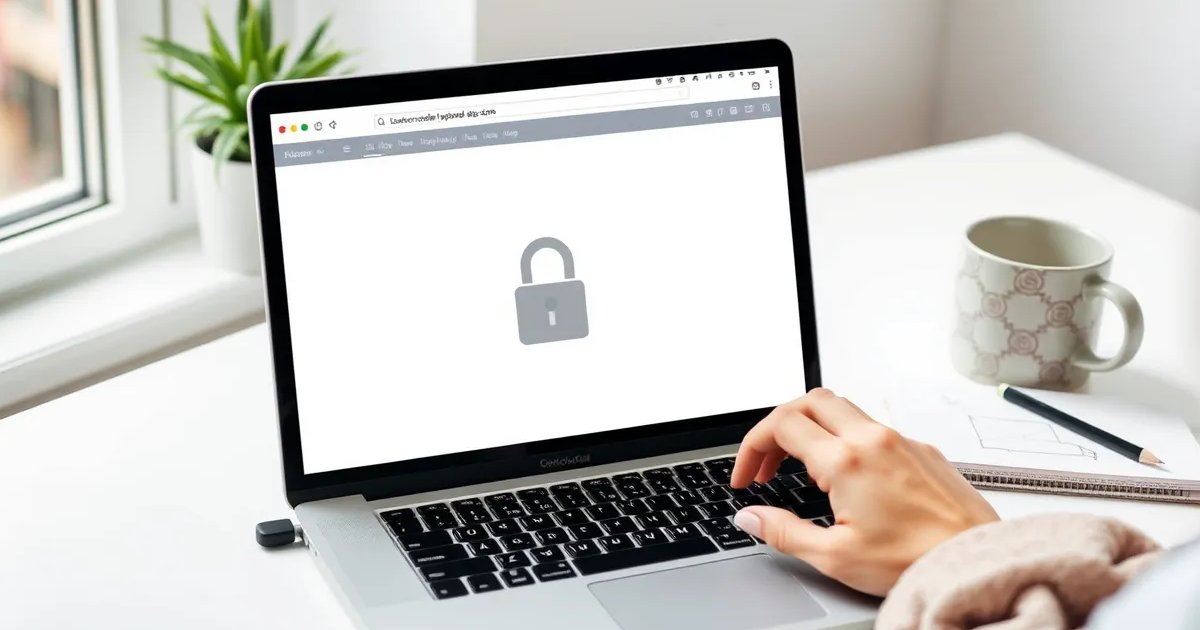
How to hide a Squarespace website while you are working on it: open Settings, then Site Availability, choose Private and save. Visitors then see a “Private Site” screen, search engines cannot index anything, and only you and your contributors can see the site when logged in. Every new Squarespace site starts in this state, so if you have not published yet you are already hidden. The complications start when the site is already live and you want to redesign it, or when you want some people to see it and not others, and that is what the rest of this post covers.
What are the three Site Availability settings?
Squarespace gives every site one master switch with three positions. Which one you want depends on who should be able to look.
| Setting | Who can see it | Search engines | Use it when |
|---|---|---|---|
| Private | Only logged-in owners and contributors | Cannot crawl or index | Building a new site, or taking one down temporarily |
| Password Protected | Anyone you give the password to | Cannot index | Showing a client or partner a work in progress; sharing a trial site |
| Public | Everyone | Can crawl and index | The site is ready and on a paid plan |
Two details trip people up. A trial site cannot be set to Public until you pick a paid plan, but it can be password protected, which is how you share a trial with someone. And if the panel refuses to save your change, check your SEO site description: Squarespace blocks availability changes when it runs past 300 characters, which is documented in Squarespace’s own guide and is the cause almost every time.
How do you hide a Squarespace site that is still being built?
- In the Home menu, click Settings.
- Click Site Availability.
- Select Private (or Password Protected if someone else needs to see it) and click Save.
- Optional, for Password Protected only: in Design, open Lock Screen to add your logo, a background and a one-line message such as “New site coming October”. A Private site shows Squarespace’s plain “Private Site” notice.
That is all a brand-new site needs. Work in the editor as long as you like; nothing is visible at your domain until you flip it to Public. If you are also deciding on a launch date, how long a Squarespace site takes to build covers the realistic two to four weeks.
Should you set a live site to Private while you redesign it?
No, and this is the mistake that costs people rankings. When a site that was public goes Private, Google can no longer reach any page. Within days it starts dropping those pages from its index, and when you come back weeks later you are starting from zero. A redesign should never involve hiding the site you already have.
Use one of these instead:
- Duplicate the site. In your account dashboard, open the site’s menu and choose Duplicate. You get a full private copy to redesign at leisure. When it is ready, move the domain across and set the copy to Public. Your live site never goes dark.
- Work page by page. Build the new version of a page as a separate, disabled page, then swap the URL slugs on launch day. Fiddlier, but no second site to manage.
- Never rely on Private as a “maintenance mode”. Squarespace has no maintenance mode that keeps pages indexed. If a page must vanish briefly, disable that one page, not the site.
The copy starts as a free trial and needs its own plan when you publish it; the original site’s plan cannot be transferred, so cancel the original after the switch. Two more catches: sites with more than 150 pages cannot be duplicated, and duplicated blog posts and other collection items get extra characters added to their URL slugs, so fix those slugs before launch or the redirects you were protecting will break.
How do you hide one page instead of the whole site?
Hover over the page in the Pages panel, click its settings cog, and you have three separate controls that people confuse with each other:
| Control | Where it is | What it does | SEO effect |
|---|---|---|---|
| Enable Page toggle | Page settings, General | Off means the page returns nothing to visitors or Google | Page is treated as gone; redirect it if it had traffic |
| Page password | Page settings, General | Visitors need the password; Google cannot read it | Not indexed |
| Hide page from search results | Page settings, SEO | Page stays public but carries a noindex tag | Removed from Google, still reachable by link |
| Not Linked section | Pages panel | Only removes it from the navigation menu | Still public and still indexable |
The last row matters most: moving a page to Not Linked hides nothing. It is the most common reason a “secret” pricing or draft page shows up in search. For blog posts, the equivalent of disabling is switching the post back to Draft.
What do visitors and Google see while the site is hidden?
Visitors at your domain get a “Private Site” notice if the site is Private, or your styled lock screen if it is Password Protected. Contributors who are logged in see the site normally, which is why designers sometimes think a site is live when it is not; open it in a private browser window to check what the public sees. Google sees nothing at all, and if the site was never public it has nothing to forget. If it was public, anything already indexed can keep appearing in results for a while with a dead link behind it. Google’s URL removal tool in Search Console clears those faster, but it is one more reason to redesign on a duplicate rather than hiding the original.
How do you make the site public again?
Settings, Site Availability, Public, Save, on a paid plan. Then two things Squarespace will not do for you: open Search Console and submit the sitemap (yourdomain.com/sitemap.xml), and request indexing for the home page. Both steps are in the Squarespace SEO checklist inside my tips post. If you are launching the site and would rather have the whole thing checked first, that is part of what I do as a Squarespace website designer.
Frequently asked questions
Go to Settings, then Site Availability, select Private and save. Only logged-in owners and contributors can see the site, and search engines cannot index it. New sites are Private by default.
Yes. Trial sites are Private by default and can be set to Password Protected to share with someone. They cannot be set to Public until you choose a paid plan.
If the site was already public, yes. Google drops pages it can no longer reach within days. Redesign on a duplicate copy of the site instead of hiding the live one.
Open the page settings from the Pages panel and turn off Enable Page. To keep the page public but out of Google, use the SEO tab and turn on Hide page from search results. Moving a page to Not Linked does not hide it.
Almost always because the SEO site description is longer than 300 characters. Shorten it under Settings, SEO, then try again.
A “Private Site” message on a lock screen. If you switch to Password Protected instead, you can style that lock screen with your logo and a message under Design, Lock Screen.