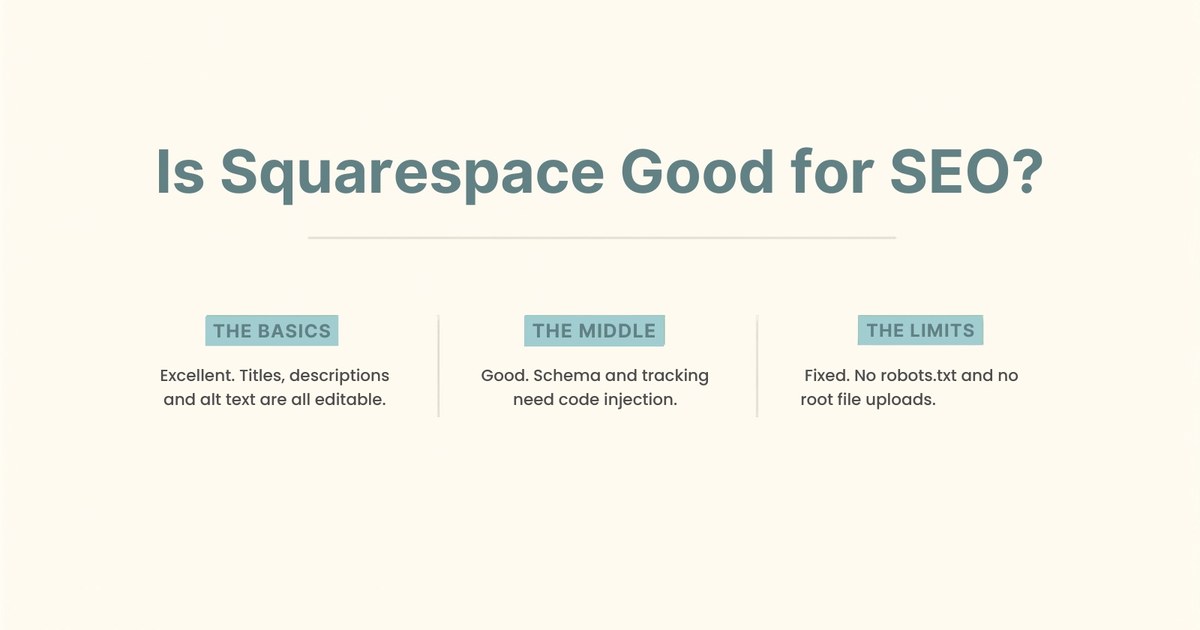
Yes, and more than its reputation suggests. Squarespace gives you full control over the things that actually move rankings: page titles, meta descriptions, URL slugs, image alt text and heading structure are all editable, and the technical foundations are handled for you. The honest catch is that it stops you doing a handful of advanced things, and one of those limits matters more in 2026 than it used to. This guide walks through every SEO setting on the platform, where to find it, and where the ceiling actually sits.
I build on Squarespace, WordPress and Showit, so I’ve got no reason to sell you one over another. What follows is what I’d tell a client who asked whether their Squarespace site can rank.
Is Squarespace Good or Bad for SEO?
Good for fundamentals, average for advanced work, and genuinely restrictive in three specific places.
The “Squarespace is bad for SEO” idea is mostly a leftover from about 2015, when the platform really did hide half these settings. That’s no longer true. Every field Google actually reads is editable today, and the platform handles sitemaps, canonical tags, SSL and mobile rendering without you touching anything.
What’s also true is that Squarespace has no plugin ecosystem, won’t let you edit robots.txt, and won’t let you upload files to your domain root. For most small business sites none of that matters. For a few, it’s the difference between the platform working and not.
The rest of this guide is the detail, in the order I’d actually work through a site.
What Does Squarespace Handle Automatically?
More than most builders, and this is the platform’s genuine strength.
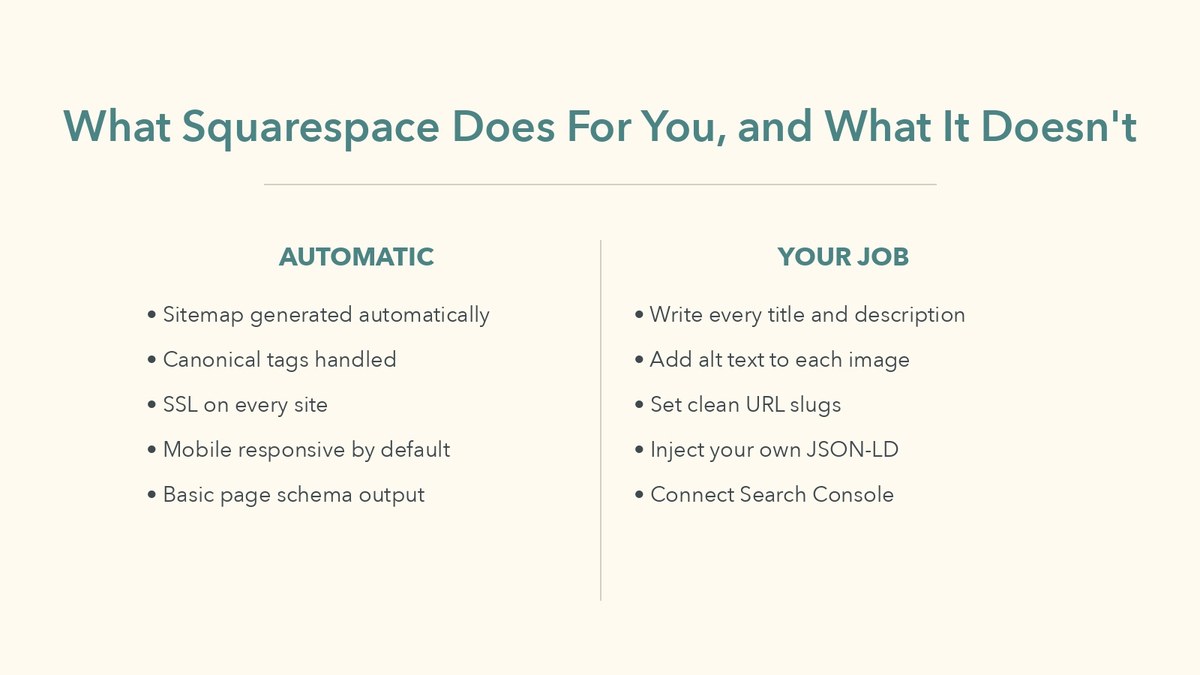
Your XML sitemap is generated and updated automatically at yoursite.com/sitemap.xml. You don’t build it and you can’t break it. Canonical tags are handled, which quietly prevents most duplicate content problems. SSL is included on every plan, and mobile responsiveness comes from the template rather than something you configure.
That’s a real advantage over self-hosted WordPress, where all four are your problem and any one of them can quietly break. If you want the contrast, my write-up on on-page SEO for small business websites covers what you’re signing up for when nothing is automatic.
The trade is that automatic also means fixed. You can’t change how any of it behaves.
Where Is the SEO Panel in Squarespace?
It’s split across three places, which is the single most confusing thing about Squarespace SEO.
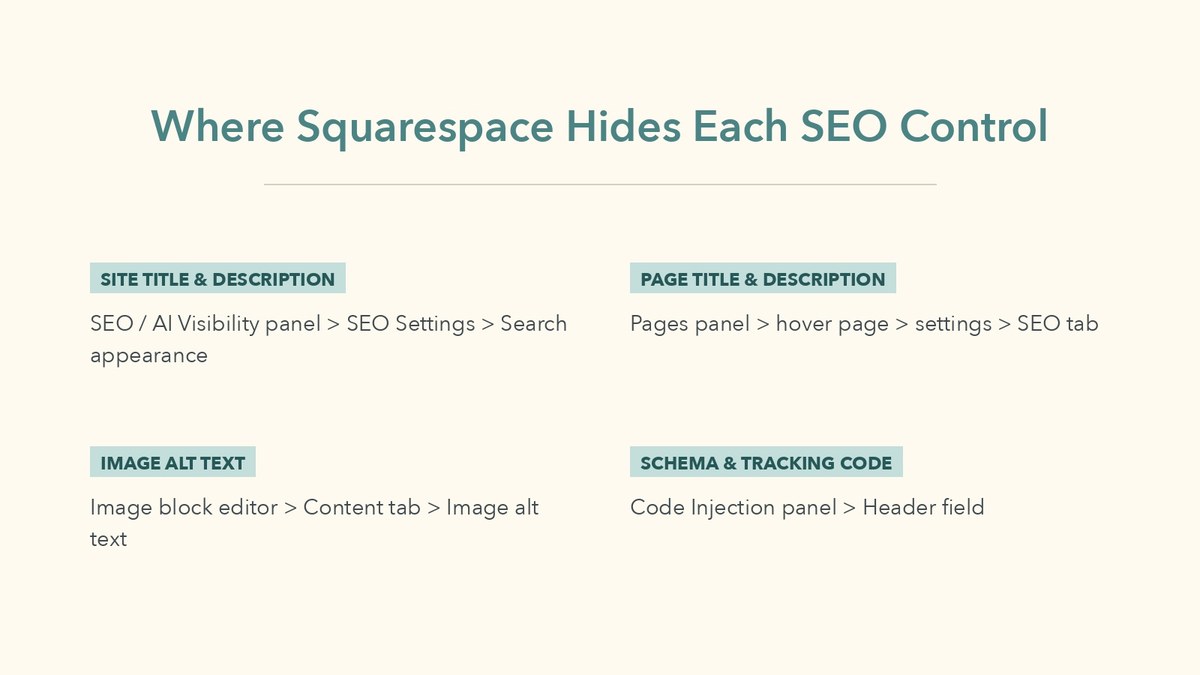
Site-wide settings live in the SEO / AI Visibility panel. Per-page settings live in the Pages panel, inside each page’s own settings. Anything custom goes through the Code Injection panel. Nothing is in one place, which is why people assume the settings don’t exist.
One thing to check before you start: whether your site is version 7.0 or 7.1, because the site-wide panel moved between them. On 7.1 you want the SEO / AI Visibility panel. On 7.0, Squarespace’s documentation tells you to open the SEO appearance panel instead. Every other path in this guide is the same on both.
How Do You Set Your Site Title and SEO Description?
Open the SEO / AI Visibility panel, click SEO Settings, then in the Search appearance area click the Home tab.
That’s where your homepage title format and site description live. Two things worth knowing here.
First, your homepage doesn’t use a page-level SEO description. It uses the site description instead, which catches people out constantly. If you’ve written a homepage description in page settings and it isn’t showing in search results, that’s why.
Second, there’s a lightning bolt icon that generates an AI description for you. Useful as a starting point, but treat it as a first draft. It writes descriptions that describe, and what you want is a description that makes someone click.
Keep the site title under 60 characters and put a real keyword in it, which is what Squarespace’s own SEO checklist recommends. “Bloom Studio” tells Google nothing. “Bloom Studio | Wedding Florist in Leeds” tells it everything.
How Do You Write Page Titles and Meta Descriptions?
Open the Pages panel, hover over the page title, click the settings icon that appears, then click the SEO tab.
You’ll find two fields: SEO Title and SEO Description. Fill both, then click Save. Repeat for every page. It’s tedious and it’s the highest-value hour you’ll spend on the site.
There’s a distinction here that trips up almost everyone, because Squarespace gives you three different titles and they do different jobs:
| Field | Where it lives | What it does |
|---|---|---|
| Page Title | General tab | Internal name, and often the visible H1 |
| Navigation Title | General tab | The text in your menu |
| SEO Title | SEO tab | What Google shows in search results |
Page Title and Navigation Title are both capped at 100 characters. The one that matters for rankings is the SEO Title, and it’s the one people leave blank, because the page already has a title and it isn’t obvious a second one exists.
Use the difference deliberately. Your menu can say “Pricing” while your SEO Title says “Wedding Photography Pricing in Leeds | From £1,200”. Short menu, descriptive search result.
How Do You Set SEO Titles on Blog Posts and Products?
Slightly different route: open the Pages panel, click into the blog, store, events or portfolio page, then open the individual item and click its SEO tab.
Squarespace calls these collection items, and they each get their own SEO Title and SEO Description exactly like a normal page. Blog posts are usually where the ranking actually happens, so if you’re going to skip this anywhere, don’t skip it here.
If you’re on version 7.0, there’s an extra wrinkle: 7.0 has a separate Page Description field in the General tab, which is different from the SEO Description. It’s used for on-page display in some templates rather than for search results.
What About URL Slugs?
They’re in the General tab of the same page settings panel, and they’re worth two minutes each.
Squarespace generates a slug from your page title, which is usually fine and occasionally awful. A page titled “Our Services and What We Offer to New Clients” becomes a URL nobody wants to read or link to. Shorten it to /services.
Two rules. Keep it short and keyword-led, and change it before the page has been live long. Editing a slug on an established page breaks every existing link to it, and Squarespace doesn’t automatically create a redirect for you. If you must change one, add a URL mapping so the old address still resolves.
Blog posts are the exception worth planning for, because Squarespace puts them under your blog page’s slug. Decide whether you want /blog/post-name or /journal/post-name at the start, not after forty posts exist.
How Do You Redirect a URL You’ve Changed?
Open the Developer tools panel, click URL mappings, and write the redirect by hand.
This is the most important Squarespace SEO feature that almost nobody knows exists, and it’s buried under a menu called Developer tools, which is why. If you change a slug, delete a page or migrate a site without setting up redirects, every link and every ranking pointing at the old address dies silently.
The syntax is a single line per redirect, made of the old URL, an arrow, the new URL, then the redirect type:
/old-page -> /new-page 301The arrow is literally a dash followed by a greater-than sign. Use 301 when the change is permanent, which is nearly always, because a 301 passes ranking value to the new address. Use 302 only for something genuinely temporary.
The field holds up to 400 KB, roughly 2,500 redirect lines, so you’re not going to run out. Squarespace recommends clearing out dead entries occasionally to keep it readable.
Do this every single time you change a slug. It takes fifteen seconds and it’s the difference between keeping a ranking and starting that page from zero.
How Should You Structure Headings?
One H1 per page, H2s for your main sections, H3s for anything nested underneath, and never pick a heading level because of how big the text looks.
That last part is the trap. In Squarespace you set headings from the text block’s formatting menu, which shows them as Heading 1, Heading 2 and so on. Because each level has its own size in the template, people choose H3 for a section title purely because H2 looked too big, then fix the size in the style editor later. The page ends up with a heading order that reads as nonsense to a crawler.
Choose the level for what the text is, then restyle the size separately. Your H1 should be the page’s actual subject and should appear once. Most Squarespace templates use your page title or a banner heading as the H1 automatically, so check you haven’t accidentally added a second one in the body.
Write H2s as the questions your reader is actually asking. It helps ranking, and it’s also what gets you pulled into featured snippets and AI answers.
How Do You Add Image Alt Text in Squarespace?
For a normal image block: click the image, open the block editor, click the Content tab, then enter your text in the Image alt text field.
The complication is that alt text works differently in five different places, which is easily the most confusing corner of Squarespace SEO. From Squarespace’s own documentation:
- Image blocks: block editor, then the Content tab, then Image alt text.
- Gallery pages: the Image Title field. If you leave the title empty, the description field becomes the alt text instead.
- Product images: hover the image, click the three dots, click Edit metadata, then fill the Alt text field and click Apply.
- Cover pages: open the Media panel, hover the image, then add your alt text.
- Banner and background images: often decorative, and frequently can’t take alt text at all.
That gallery behaviour is the one to watch. Plenty of sites end up with alt text reading “IMG_4471” because the filename became the title, and nobody realised the description field was doing the work.
Write alt text for a person who can’t see the image, not for a search engine. “Bride holding peony bouquet on stone steps” beats “wedding flowers leeds wedding florist” every time, and the second one reads as spam to both audiences.
Does Squarespace Add Schema Markup Automatically?
Barely. I checked a live Squarespace site while writing this, and the entire automatic output was a single JSON-LD block containing one WebSite node with a name and a URL.
That’s worth stating plainly because a lot of articles wave at “Squarespace adds schema automatically” as though it’s handled. It isn’t. There’s no Organization, no LocalBusiness, no Article, no BreadcrumbList, no Product markup in that automatic output. If you want rich results, you add the markup yourself.
The route is the Code Injection panel. Paste your JSON-LD into the header field and click Save, and it applies site-wide. For markup that should only appear on one page, open the Pages panel, hover the page, click the settings icon, then click Advanced, which gives you a per-page injection field.
A local business needs LocalBusiness markup with a name, address and opening hours. A blog benefits from Article. A shop wants Product markup with price and availability. Write it once, validate it, paste it in.
Two cautions. Code injection is only available on paid plans, so this is not a trial-tier exercise. And if you inject Article or WebSite markup of your own, check you haven’t created a duplicate of something the platform already outputs, because two conflicting declarations are worse than one.
How Do You Optimise a Squarespace Site for AI Search?
Mostly by writing differently, because the levers other platforms give you aren’t available here.
Squarespace has clearly noticed the shift. The site-wide panel is now called SEO / AI Visibility, not just SEO, and it includes an SEO Report with a completion score and an Improve with AI button that flags pages missing descriptions or alt text. Open it, work the score up, and you’ve covered the mechanical part.
The part that actually gets you quoted by ChatGPT, Copilot or an AI Overview is structural, and it’s free on any platform:
- Answer the question in the first two sentences of a page or post. AI engines lift direct answers, not build-ups.
- Use question-shaped headings that match how people actually ask, then answer each one immediately underneath.
- Put comparable facts in real tables. Tables get quoted far more than the same information written as prose.
- Add an FAQ section using genuine questions, and back it with FAQPage markup through code injection.
- Be specific. Numbers, dates and named details get cited. Vague claims don’t.
Here’s the limitation nobody mentions: you can’t host an llms.txt file on Squarespace, because the platform doesn’t let you upload files to your domain root. That file is becoming a common way to tell AI crawlers what your site is and which pages matter, and on Squarespace it simply isn’t an option today. It isn’t fatal, since AI engines mostly read your pages directly, but it’s a real gap versus a self-hosted site.
What About Social Sharing Images?
Set a site-wide default in the Social Sharing panel, then override it per page from the Social tab in page settings.
This is your Open Graph image, the picture that appears when someone drops your link into WhatsApp, LinkedIn or Slack. It isn’t a direct ranking factor, but it drives whether anyone clicks a shared link, and shared links are how you earn the backlinks that are a ranking factor.
For a specific page, open the Pages panel, hover the page, open its settings and click the Social tab. Blog posts, products and events work the same way: open the collection page, open the item, then use its Social tab.
Squarespace falls back to the page’s first image if you don’t set one, which is fine until the first image on your best post happens to be a logo or a decorative divider.
Does Site Speed Hurt Squarespace SEO?
Less than people claim, and the part that does hurt is almost always your images.
Squarespace serves everything through a CDN and generates responsive image sizes automatically, so the baseline is decent. What kills it is uploading a 6 MB photo straight off a camera, then doing that thirty times across a portfolio.
Resize images to no more than about 2,500 pixels wide before uploading and compress them. Squarespace will do the responsive work from there. You also can’t strip the platform’s own scripts, so there’s a floor you won’t get under, and chasing a perfect performance score on Squarespace is wasted effort.
Speed is a tiebreaker, not a primary factor. A fast page with thin content still loses to a slower page that answers the question properly.
Do Tags and Categories Help?
They help readers navigate, and they help you far less than you’d hope.
Squarespace’s own SEO checklist recommends organising blog posts and products with tags and categories, and that’s sound advice for structure and internal linking. What they aren’t is a ranking lever. Tagging one post with fifteen keywords does nothing except create fifteen near-empty archive pages.
Use a small number of real categories that match how someone would actually browse your site. Three to six is plenty for most blogs.
How Do You Connect Google Search Console?
Verify the site in Search Console, then submit your Squarespace sitemap URL, which is always yoursite.com/sitemap.xml.
Do this on day one. Search Console is the only place you’ll see what people actually typed to reach you, and on a new site it’s the only honest measure of whether any of this is working. Third-party tools barely track sites this small, which I go into in more detail in my piece on how long a new website takes to show up on Google.
Expect impressions before clicks, and expect months rather than weeks. That’s normal and it isn’t Squarespace’s fault.
What Are the Real Limits of Squarespace SEO?
Four, and only one of them bothers most businesses.
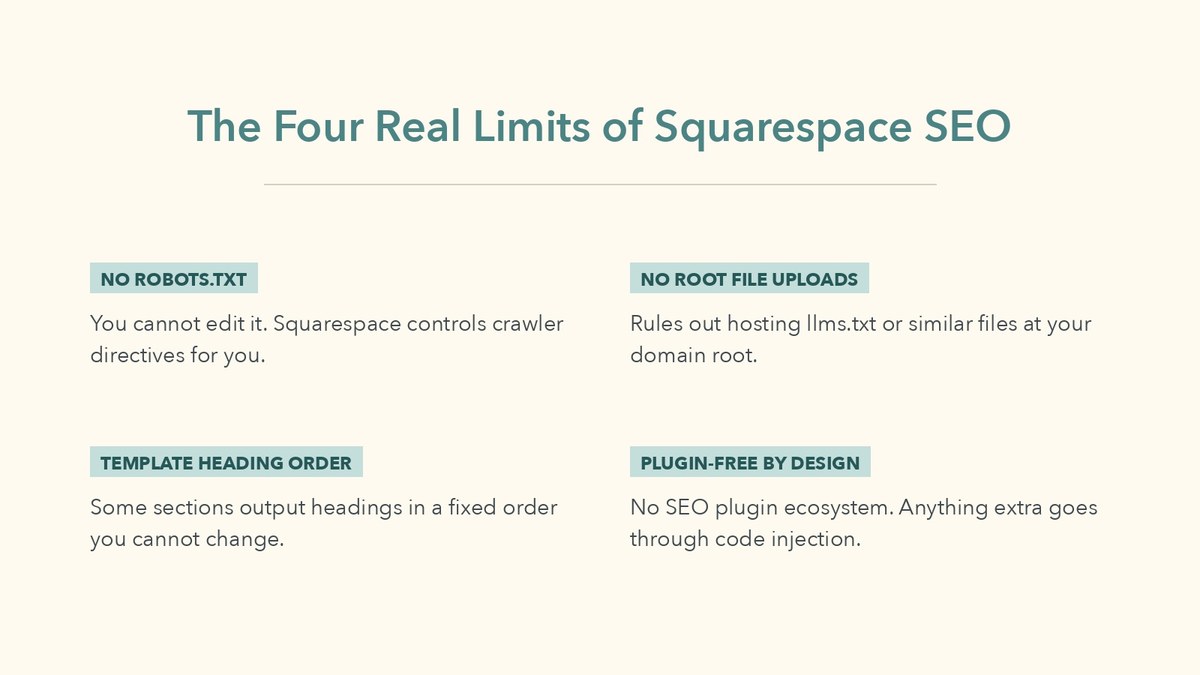
You can’t edit robots.txt. Squarespace manages crawler directives itself. In practice this is fine, because the defaults are sensible, but if you need to block a specific crawler or carve out a section, you can’t.
You can’t upload files to the domain root. This is the one that’s aged badly. It rules out llms.txt, and it makes some verification methods awkward.
Heading order is partly fixed by the template. Some sections output an H1 or H2 where the template decides, not where you’d choose. You can usually work around it by restructuring the section, but not always.
There’s no plugin ecosystem. No equivalent of Yoast or Rank Math doing the thinking for you. Everything beyond the built-in fields goes through code injection, which means knowing what to write.
If you need granular crawler control or heavy programmatic SEO across thousands of pages, use WordPress. For a brochure site, a portfolio or a small shop, none of these four will be the reason you aren’t ranking.
Is Squarespace SEO Good Enough for Your Business?
For most small businesses, comfortably. The platform is almost never the bottleneck.
In six years of building sites, I’ve never diagnosed a Squarespace site that was failing because of Squarespace. They fail because nobody filled in the SEO descriptions, the images have no alt text, the site has four pages of thin content, and nothing links to it. All four of those are fixable in an afternoon, and none of them are the platform’s doing.
Choose the platform on how you’ll actually use it. If you’ll never open a code editor and you want to publish without breaking things, Squarespace’s constraints protect you more than they cost you. If you’re weighing it against something else, my comparison of Showit and Squarespace goes deeper, and how long a Squarespace site takes to build covers the time side.
Frequently Asked Questions
If you are moving an established site to a new domain, the redirect work matters more than any setting on this page; how to change a Squarespace domain without losing rankings covers the mapping step by step.
No. That reputation dates from around 2015, when many of these settings were genuinely hidden. Today every field search engines read is editable, and sitemaps, canonical tags and SSL are all handled automatically. The real limits are narrow and technical rather than fundamental.
It is split across three places. Site-wide settings are in the SEO / AI Visibility panel under SEO Settings. Per-page titles and descriptions are in the Pages panel, inside each page settings under the SEO tab. Anything custom goes through the Code Injection panel. On version 7.0 the site-wide panel is called SEO appearance instead.
Barely. On a live Squarespace site I checked, the entire automatic output was a single JSON-LD block containing one WebSite node with a name and URL. There is no Organization, Article, LocalBusiness or Product markup by default, so anything beyond that has to be added yourself through the Code Injection panel.
No. Squarespace manages crawler directives itself and does not expose the file. For most sites this is fine because the defaults are sensible, but if you need to block a specific crawler or exclude a section of the site, you cannot do it on this platform.
For a standard image block, click the image, open the block editor, click the Content tab and fill the Image alt text field. Gallery pages use the Image Title field instead, and fall back to the description field if the title is empty. Product images use the three dots menu, then Edit metadata, then the Alt text field.
Open the Developer tools panel and click URL mappings, then write one line per redirect in the format: old URL, then a dash and greater-than sign, then the new URL, then 301. Use 301 for permanent changes so ranking value passes to the new address. The field holds around 2,500 redirect lines.
Not currently. Squarespace does not let you upload files to your domain root, which is where an llms.txt file has to live. AI engines still read your pages directly, so it is not fatal, but it is a genuine gap compared with a self-hosted site.
WordPress has the higher ceiling, Squarespace has the higher floor. WordPress gives you robots.txt control, root file access and a plugin ecosystem, but every technical foundation becomes your responsibility. Squarespace handles those automatically and rarely limits a small business site. Pick WordPress if you need granular control or thousands of pages.
The Short Version
Squarespace is good for SEO. Set your site title and description in the SEO / AI Visibility panel, write an SEO Title and Description for every single page and blog post in the Pages panel, tidy your slugs, add real alt text everywhere, and inject the schema you need through Code Injection. Do those five things and you’ll be ahead of most sites on any platform.
Then accept the ceiling: no robots.txt, no root files, no plugins. For most businesses that ceiling is far above where they’re operating.
If you’d rather have someone work through this list on your site than do it yourself, have a look at how I work with clients. Send me your URL and I’ll tell you honestly which of these are missing.
More on the implementation side: Squarespace design and SEO for professionals.