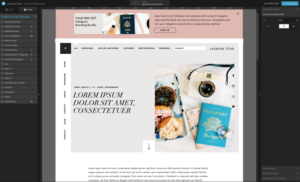
The seven Showit website issues I get asked about most are a mobile layout that looks nothing like the desktop design, blog posts that do not show up, blurry images, pages Google will not index, missing or duplicate meta descriptions, slow load times, and settings that do not seem to save. Every one of them has a known cause and a fix you can do yourself in under an hour, and this post walks through each in the order people hit them.
Quick answer:
The most common Showit website issues, broken mobile layouts, slow load times, and SEO settings not saving, all have straightforward fixes. Most Showit problems stem from canvas elements not being properly set for mobile, oversized images, or missing WordPress blog configuration.
Showit website issues are more common than most people expect, and the frustrating part is they often have nothing to do with your design skills. Showit is a genuinely powerful platform, flexible, beautiful, and capable of producing sites that look like nothing else on the web. But it comes with quirks that can catch even experienced users off guard.
In this guide, you’ll get a clear breakdown of the most common Showit problems people run into, why they happen, and exactly how to fix them, or how to know when it’s time to bring in a professional.
Why Showit Website Issues Catch People Off Guard
Showit works differently from WordPress or Wix in one important way: it’s a canvas-based design tool. You’re positioning elements visually, not working inside a grid or a block editor. That’s what makes Showit so creative and flexible. It’s also what makes certain problems harder to spot until something breaks.
Here’s the thing: what you see in the Showit designer isn’t always what your visitors see. Mobile and desktop are designed on separate canvases. Images are handled differently than on a traditional CMS. And Showit’s blog runs on WordPress on the backend, which means issues can originate from two separate platforms at once.
I’ve worked with clients who spent weeks perfecting their Showit site only to discover their contact form had been sending submissions to an old email, their homepage was loading in nine seconds, or Google had indexed zero pages. Every single one of these problems was fixable. They just needed someone to know where to look.
Personally, I think Showit is one of the most underrated platforms for photographers, coaches, and creatives who want full design control without writing code. But the learning curve gets steep fast when something goes wrong.
The most common Showit website issues and what causes them
1. Why does my Showit site look broken on mobile?
This is the number one complaint I hear from Showit users. Someone designs a gorgeous desktop site, switches to the mobile preview, and finds text overlapping images, buttons cut off at the edge of the screen, or entire sections that have shifted completely out of place.
Why does this happen? Showit uses separate canvases for desktop and mobile. Changes you make on desktop do not automatically carry over to mobile, you design each breakpoint manually. So if you moved an element, resized a section, or added new content without touching the mobile canvas, your mobile layout is almost certainly broken.
The fix: Open the Showit designer, switch to mobile canvas view, and rebuild any sections that look off. It’s tedious, yes, but it’s the correct approach. Once you get into the rhythm of designing both breakpoints together, this stops being a recurring Showit problem.
2. Why are my Showit blog posts not showing up?
Showit’s blog runs on WordPress. That’s actually a huge advantage for SEO, but it also means your blog issues are, technically, WordPress issues.
If your posts aren’t appearing on your Showit site, common causes include: your WordPress and Showit connection isn’t configured correctly, posts are still set to “Draft” instead of “Published” in your WordPress dashboard, or your Showit blog canvas isn’t properly linked to the WordPress post template.
Always check your WordPress dashboard first. If posts are published there but not showing on your Showit site, the issue lives in the Showit, WordPress connection settings, not in the design itself.
3. Why are my Showit images blurry or not loading?
Blurry images in Showit are almost always a resolution issue. Showit scales images beautifully on retina and high-DPI screens, but only if you upload them at the right dimensions. A safe rule: upload images at 2x their intended display size. If an image displays at 800px wide on your site, upload it at 1600px.
Images that refuse to load at all are usually a caching issue or a file format problem. Clear your browser cache and try again. If that doesn’t solve it, re-upload the image in a web-friendly format, JPG, PNG, or WebP all work well with Showit.
Showit SEO problems that are easy to miss
One of the most damaging Showit website issues isn’t visual at all, it’s invisible. Your site looks great, but Google isn’t ranking it anywhere.
4. Why is my Showit site not showing up on Google?
If your site has been live for several months and still isn’t appearing in Google search results, there’s likely a deeper issue than just waiting for Google to crawl it.
Check your Showit SEO settings for every page. Showit gives you control over whether individual pages are indexed or blocked from search engines. It’s surprisingly easy to accidentally leave “no-index” enabled on a page, which tells Google to skip it entirely. One misclick and a key service page disappears from search.
You should also verify your site in Google Search Console and submit your sitemap manually. Showit generates a sitemap automatically, but Google doesn’t always find it without a nudge.
5. Why are my meta descriptions missing or duplicated?
Showit gives you a meta description field for every page. Most users either leave them blank or paste the same generic description across all pages. Both hurt your visibility in search results.
Write a unique meta description for each page, 150 to 160 characters, include a relevant keyword, and make it sound like a human wrote it. Your homepage, services page, and about page each need their own distinct descriptions.
For your blog, SEO is managed inside WordPress. If you’re not using Yoast SEO or Rank Math, you’re leaving a significant amount of optimization untouched. Both plugins integrate cleanly with Showit’s WordPress blog and give you granular control over how your posts appear in search. If you want a deeper look at making your Showit blog rank, check out this guide on Showit SEO tips for photographers and creatives.
6. Why is my Showit website so slow?
A slow website is one of those Showit issues that creeps up quietly. Everything looks fine until you run a speed test and see a performance score that makes you wince.
Page speed matters for two reasons: it directly affects your visitors’ experience (research consistently shows that a one-second delay raises bounce rates), and it’s a confirmed factor in Google’s ranking algorithm.
Common speed culprits in Showit:
- Uncompressed images, Showit doesn’t automatically compress images on upload. Run your files through Squoosh or TinyPNG before uploading them.
- Too many custom fonts, Every font family is an additional HTTP request. Two fonts is plenty. Three is the absolute max.
- Autoplay or embedded video on the homepage, These are heavy assets. Use a thumbnail with a play button that loads the video only when a visitor actually clicks.
- Bloated WordPress plugins, If your Showit blog runs 20 plugins, several of those are slowing your site down. Audit your plugins and remove anything you don’t actively need.
Run your site through Google PageSpeed Insights, it’s free, and it gives you a prioritized list of exactly what to fix.
7. Settings not saving? Run this checklist before anything else
Before calling in a professional (or spiraling into a three-hour YouTube rabbit hole), work through this checklist. It’ll help you pinpoint whether the fix is something you can handle yourself.
- [ ] Open the Showit mobile canvas, is it designed separately from the desktop version?
- [ ] Confirm blog posts are set to “Published” in your WordPress dashboard
- [ ] Check that no important pages have “no-index” enabled in Showit SEO settings
- [ ] Submit your sitemap to Google Search Console
- [ ] Test your contact form by sending a real message to yourself
- [ ] Run a PageSpeed test and review the top three issues flagged
- [ ] Check image dimensions, are they uploaded at 2x the intended display size?
- [ ] Confirm all images are in JPG, PNG, or WebP format
- [ ] Verify every key page has a unique meta description filled in
- [ ] Check your Showit, WordPress connection is active in settings
If you’ve worked through this entire list and still can’t identify the problem, you’re likely dealing with something technical, a DNS misconfiguration, a plugin conflict, or a broken WordPress sync. That’s when it makes sense to bring in someone who knows the platform deeply.
When to Stop Troubleshooting and Call a Showit Expert
There’s a point where troubleshooting your own Showit website stops saving you time and starts costing you business. If your site has been visibly broken for more than a couple of days, or if the same issues keep coming back every few weeks, it’s worth getting a professional involved.
Some Showit problems genuinely require someone with platform experience: custom CSS work, rebuilding a broken mobile canvas from scratch, diagnosing server-side issues, or setting up a proper SEO workflow across both the Showit and WordPress sides of your site.
And let me be honest: sometimes the fastest fix is having the right person look at it for 30 minutes instead of you spending two days watching tutorials and making things worse by accident.
If your Showit site needs troubleshooting, a performance overhaul, or a full redesign, you can learn more about what a professional Showit engagement looks like on the Showit website design service.
Showit is a genuinely great platform, but like any tool, it has quirks that show up when you least expect them. The good news is that most Showit website issues have clear, fixable causes once you know where to look. Start with the checklist, work through the common culprits one by one, and don’t burn time on problems that are genuinely beyond a quick fix.
If you’d rather hand it off entirely, I work with Showit sites every day, from troubleshooting and speed fixes to full redesigns. Reach out and let’s get your site working the way it should.
Frequently asked questions
Showit uses separate canvases for desktop and mobile, changes on one don’t automatically apply to the other. You need to manually design the mobile version of each section in the Showit designer. Switch to the mobile canvas view, identify sections that look broken, and reposition or resize elements there. It’s extra work upfront, but once you get used to designing both breakpoints together, this becomes much less of an issue.
Showit’s blog is powered by WordPress on the backend. If your posts aren’t appearing, the most common causes are: posts are still in “Draft” status in WordPress, your Showit, WordPress connection isn’t properly configured, or the Showit blog canvas isn’t linked to the correct WordPress post template. Start by checking your WordPress dashboard, if posts are published there but not showing on your Showit site, the issue is in the connection settings between the two platforms.
Start with the basics: fill in a unique meta title and meta description for every page in Showit’s SEO settings, make sure no important pages are set to “no-index,” and submit your sitemap to Google Search Console. For your blog, install Yoast SEO or Rank Math inside WordPress and optimize each post individually. Since Showit’s blog runs on WordPress, you have access to the full range of WordPress SEO tools, use them.
The most common culprits are large, uncompressed images and too many WordPress plugins. Showit doesn’t automatically compress images on upload, so run your files through a tool like TinyPNG or Squoosh before adding them to your site. Also audit your WordPress plugins and remove anything you’re not actively using. Run your site through Google PageSpeed Insights for a full diagnosis, it’ll tell you exactly what to fix and in what order.
Many common Showit problems, broken mobile layouts, blog visibility settings, missing meta descriptions, and image sizing, are things you can fix yourself with a bit of patience. But if you’re dealing with recurring issues, technical problems like DNS or server configuration, or you’re losing time troubleshooting instead of running your business, it’s worth bringing in a Showit designer. A professional can often resolve in an hour what takes a non-technical user days to figure out.